Deliveries
Managing deliveries and requirements
Define content requirements, manage version history, track review status, and keep delivery notifications aligned with the work.
Updated August 23, 2026
Create or update a delivery
- 1Open a collaboration and choose Add Delivery, or open an existing delivery.
- 2Enter the title, platform, due date, status, description, requirements, and any reference links shown by the form.
- 3Save changes, then use the status action to move the work through planned, in-progress, review, approved, revision requested, published, or cancelled states.
- 4Check the collaboration detail page to see the delivery alongside the agreed deal and financial records.
Manage requirement versions
- 1Open a delivery and find the Client Requirements section on its profile page.
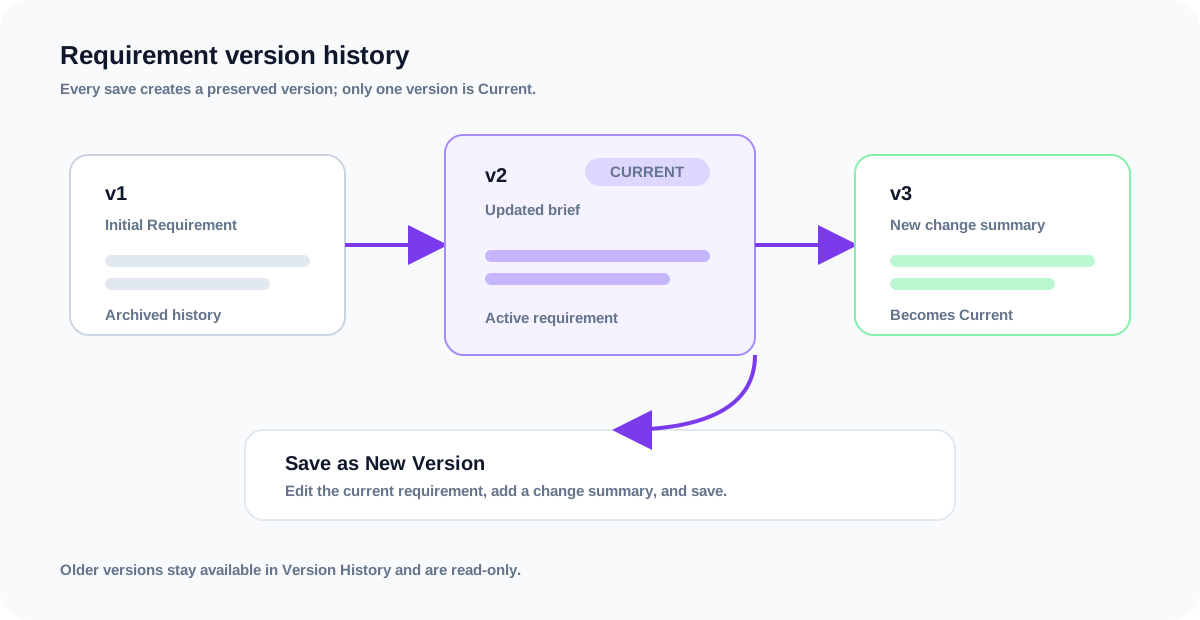
- 2The first saved requirement becomes Version 1 and is marked Current.
- 3To change the requirements, edit the current version and choose Save as New Version. Add a short change summary so the history explains what changed.
- 4The previous version is retained as history, while the new version becomes the only Current version.
- 5Select an older version in Version History to review its content. Older versions are read-only and cannot be edited into a new version.
How versioning works
- Each delivery has its own numbered requirement history starting at v1.
- Saving a new version increments the number by one and preserves the previous requirement content.
- Only the latest version is marked Current and is shown as the active requirement.
- Requirement text is sanitized before it is saved, so unsupported HTML and unsafe content are removed.
- If another person creates a version while your page is open, the stale version cannot be overwritten; reload first and save from the current version.
Note:Publishing a delivery records its published date the first time it enters Published. Changing status later does not erase that original publication timestamp.
Tip:Before expecting a brand email, verify the notification template is enabled and the brand contact has the relevant consent.