
Deliveries
Tracking deliveries from draft to published
Plan content, set due dates, and move deliveries through a controlled review, revision, approval, and publication workflow.
Updated August 23, 2026
A delivery is a piece of content promised within a collaboration. It can include a title, content type, platform, due date, notes, URL, and status.
Track a delivery
- 1Open Deliveries or a collaboration detail page and add the delivery.
- 2Choose the platform and content type, add the due date and notes, and save it as Draft.
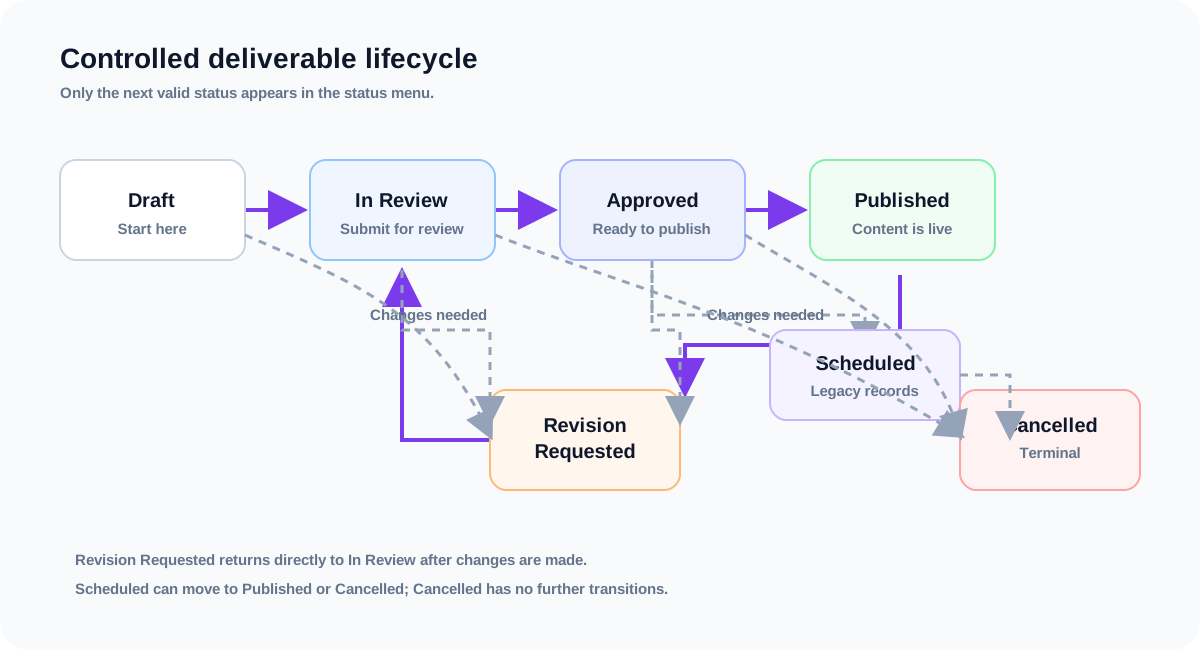
- 3Move it from Draft to In Review, then to Approved, and finally to Published as the work progresses.
- 4If changes are requested, move it from In Review or Approved to Revision Requested, then send it directly to In Review after making the requested changes.
- 5Use Cancelled when the item will not be delivered. Cancelled is a terminal state and cannot be reopened.
- 6Add the published URL when the content goes live so the record remains useful after publication.
Allowed status changes
- Draft → In Review or Cancelled.
- In Review → Approved, Revision Requested, or Cancelled.
- Revision Requested → In Review or Cancelled. It does not need an intermediate Draft step.
- Approved → Published, Revision Requested, or Cancelled.
- Scheduled → Published or Cancelled. This keeps older scheduled deliveries from getting stuck.
- Published → Revision Requested when published content needs changes.
- Cancelled has no further status changes.
Note:The status menu shows only valid next steps for the current status. A delivery included on any non-cancelled invoice cannot be moved to Cancelled; remove or cancel the invoice first. Existing deliveries keep their current status; the workflow rules apply when someone attempts a new change.
Tip:Use the due-date filters to focus on overdue work or items due this week or month. The Dashboard also surfaces upcoming and overdue deliveries.
Related guides
Creating and managing collaborations
Set up a deal, connect it to a brand and creator, and use its detail page as the source of truth.
Understanding the Dashboard
Use the Dashboard to see active work, upcoming deadlines, outstanding invoices, recognized revenue, and recent activity.
Creating and sending an invoice
Create an invoice from a collaboration, add line items, review tax and totals, then send it to the brand.